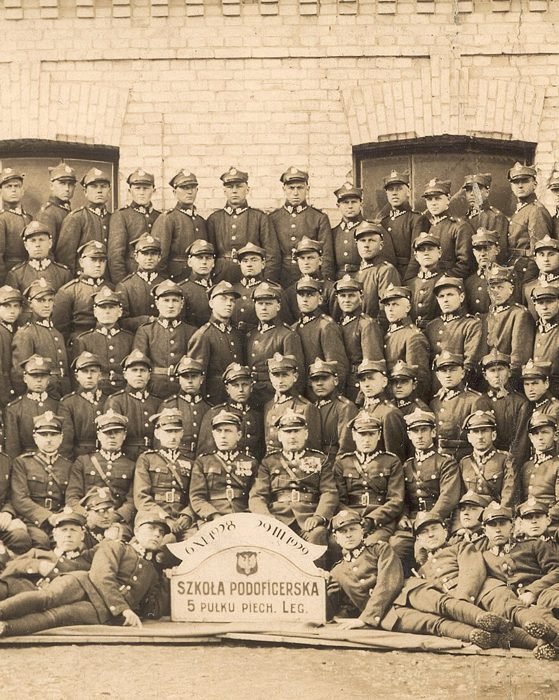
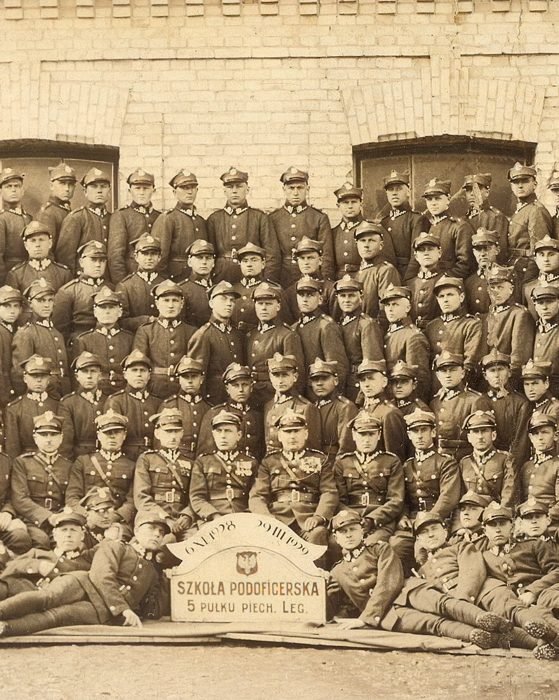
Colorize black and white photos without losing the original
A black and white photo colorizer estimates color from the visual information that remains in a grayscale image. RenewShot makes that workflow available in an iPhone app: choose a photo, use Colorize, inspect the generated version, and save it as a separate image.
The strongest use case is a clean digital copy of an old family photograph. Clear faces, clothing boundaries, buildings, foliage, and sky give the colorizer more context. A very small, blurred, overexposed, or heavily damaged source leaves more room for uncertain choices.
How the photo colorizer app works
- Prepare a working copy. Keep the untouched master scan or capture in a separate folder. The U.S. National Archives recommends retaining original photographs after digitization because digital files can be lost.
- Choose Colorize. Open RenewShot, select the Colorize tool, and choose the working copy from your photo library.
- Process and compare. When the result is ready, compare faces, uniforms, signs, objects, and edges with the monochrome source.
- Save with a clear label. Use a filename or album note that identifies the image as colorized, especially when you share it as family or historical material.
For a complete walk-through, including capture and inspection tips, follow our guide on how to colorize black and white photos on iPhone.
Repair damage before you colorize old photos
Color and structural repair solve different problems. Colorize estimates hues; it does not reliably rebuild a torn face, remove every scratch, or recover detail that is absent from the source. When a photo has prominent cracks or missing areas, make a restored monochrome version first.
This staged approach gives you useful checkpoints: the original master, the repaired black-and-white copy, and the colorized interpretation. If the final result looks wrong, you can return to the cleanest earlier version without repeating the entire workflow.
If the photograph needs more than color, start with our seven-step old photo restoration guide.
What colorization can—and cannot—tell you
| Colorization can | Colorization cannot guarantee |
|---|---|
| Create a plausible color interpretation | Recover every original color from grayscale |
| Make separate objects easier to distinguish | Verify uniforms, products, flags, or locations |
| Offer a new way to experience a family photo | Replace the original as a historical record |
| Work from a copy on your iPhone | Repair severe physical damage to the print itself |
Accuracy note: if a particular dress, medal, vehicle, or building color matters, compare the result with dated records or family knowledge. Grayscale values can correspond to more than one real-world color.
Black and white photo colorizer questions
Can a photo colorizer recover the original colors?
No photo colorizer can prove every original color from grayscale alone. RenewShot creates a plausible color interpretation that should be compared with family knowledge or historical references when accuracy matters.
Should I restore an old photo before colorizing it?
Usually, yes. Repairing prominent scratches and damaged areas first gives the colorization step a cleaner working image. Save the restored monochrome copy before creating a color version.
What kind of photo works best for colorization?
A sharp, evenly lit digital copy with visible faces, clothing, and object boundaries gives a colorizer more useful visual context. Glare, motion blur, severe fading, and tiny subjects can reduce consistency.
Is RenewShot available for Android?
RenewShot is currently available for iPhone through the Apple App Store.
Digitization guidance
Disclosure: RenewShot publishes this page and owns the app linked here. There are no affiliate links.